
How it works
How a video gets from the district's approved list to a class.
Every video a class sees was approved by the district first. Here are the real screens each person uses, in order. This walkthrough shows a K-5 class; grades 6 to 12 join with a class code.
Real screens from our demo district. All names are fictional.
01 The district
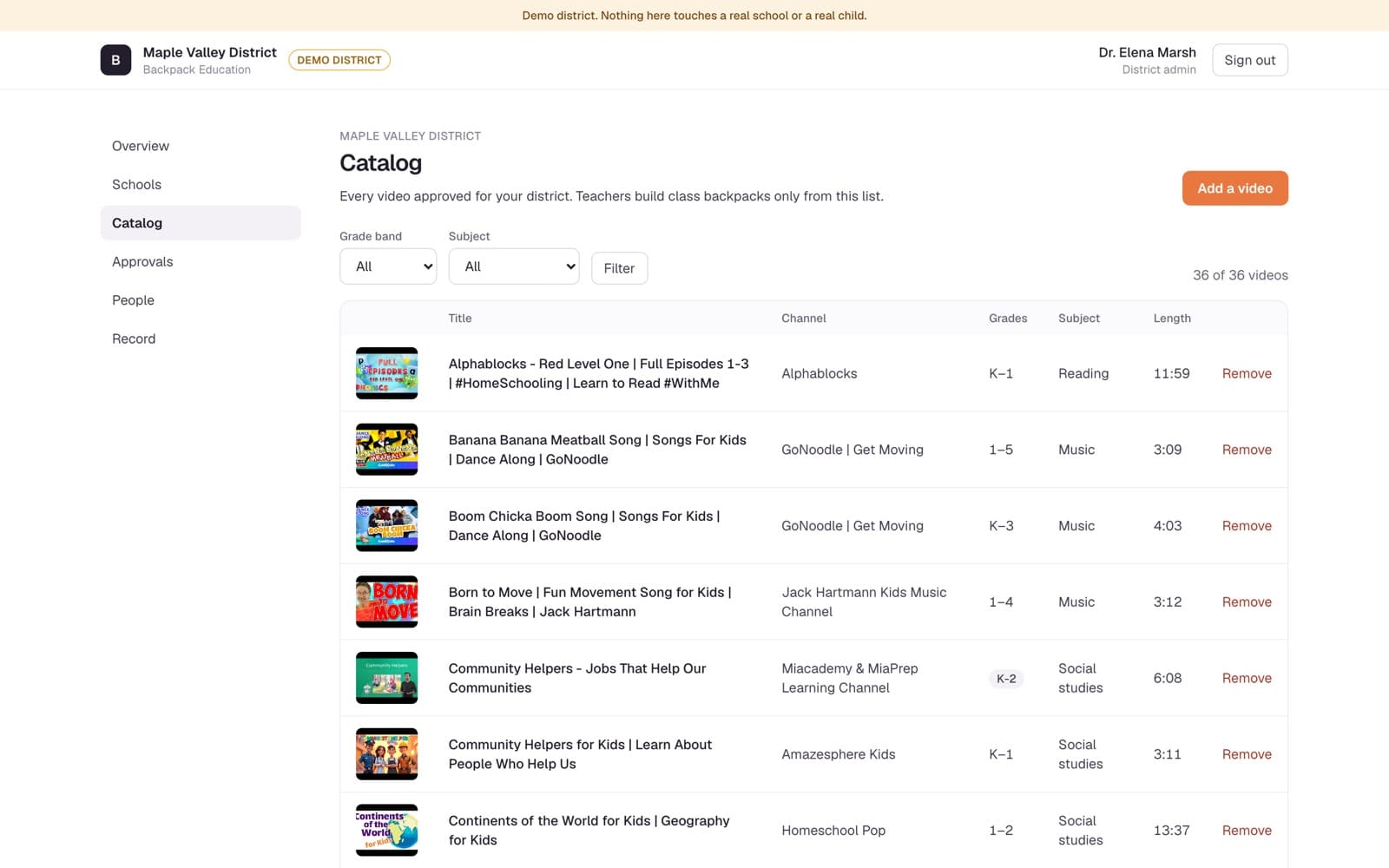
The district approves each video for a grade band.
The district approves each video for a grade band and subject. Teachers pack only from this list, and Remove takes a video out of every backpack at once.
02 The school
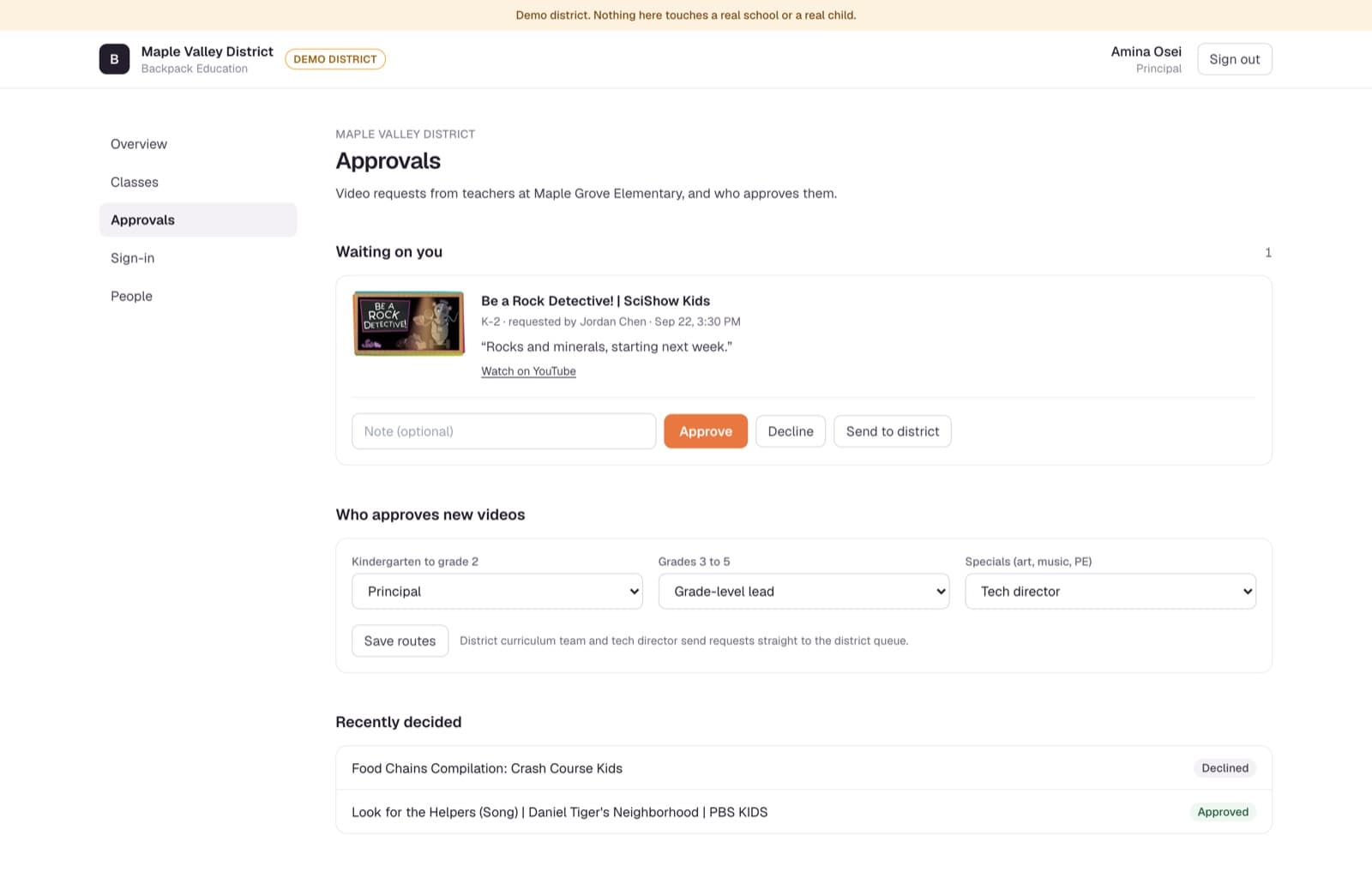
Each school chooses who approves requests.
For each grade band, the school chooses who approves new videos. A teacher's request lands with that person, with a note: approve, decline, or send it to the district.
03 The teacher
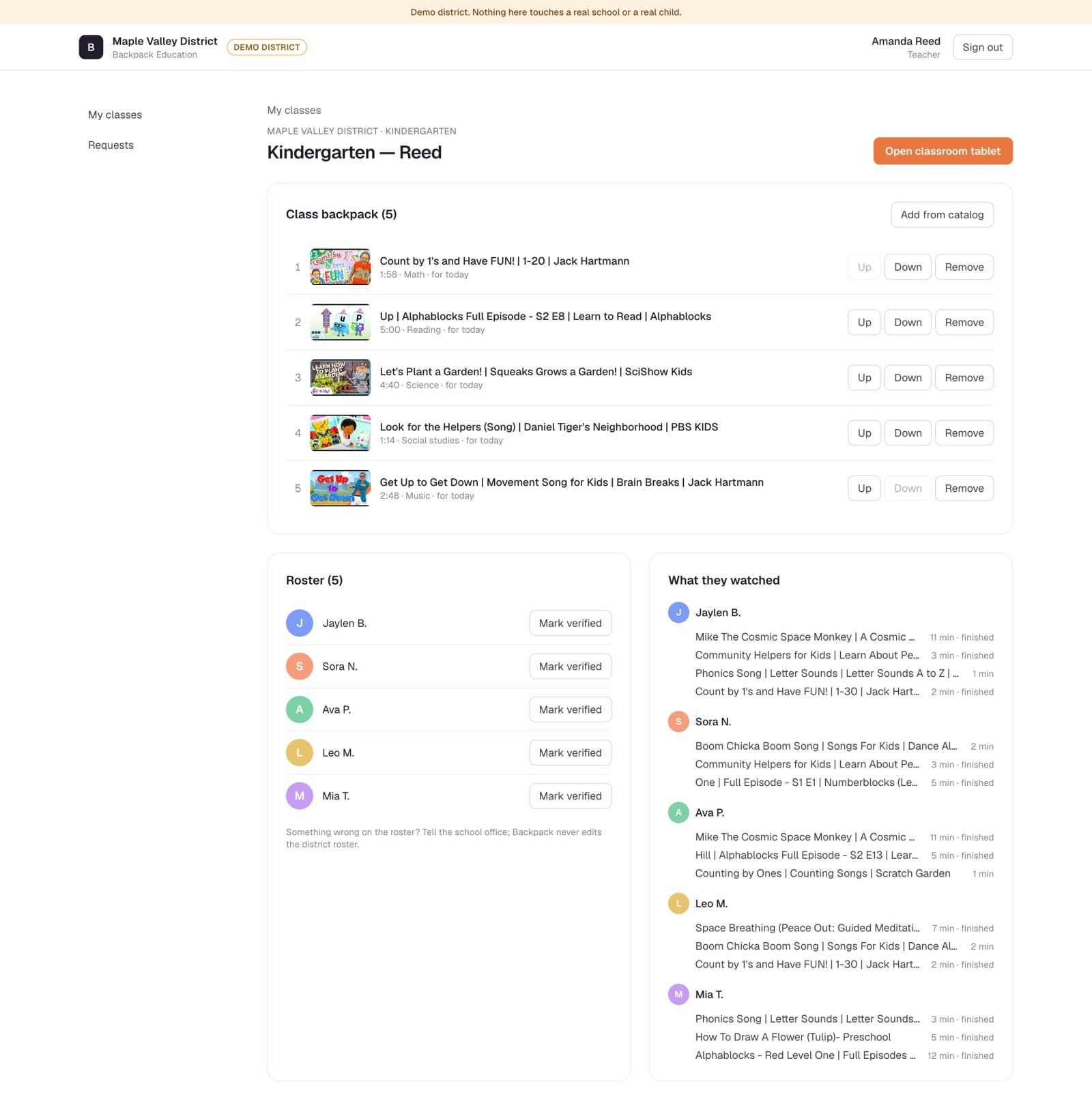
The teacher chooses and orders the videos.
Five videos from the approved catalog, in teaching order. Up, Down and Remove are the whole editor.
04 The teacher
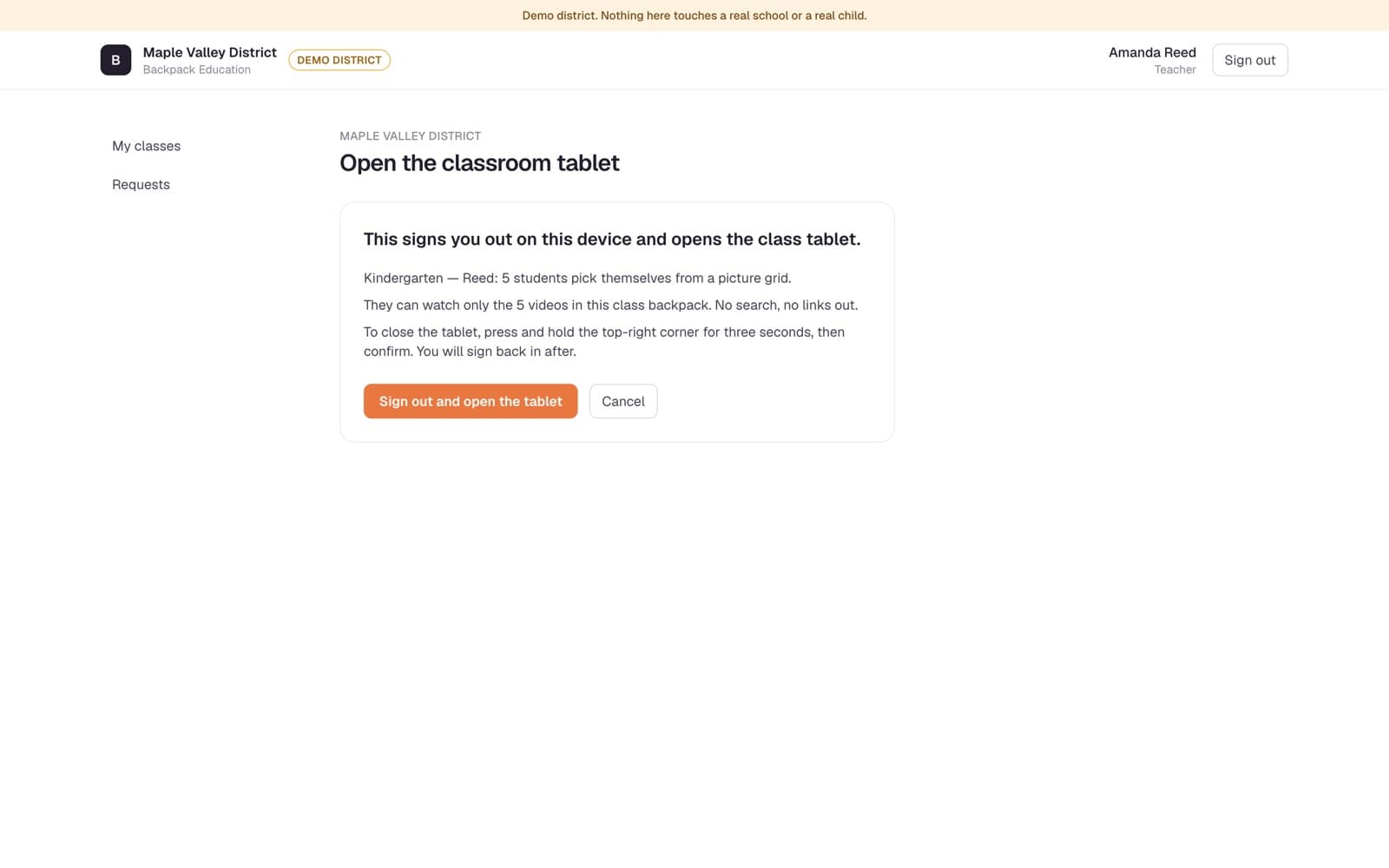
Opening the tablet signs the teacher out.
Opening the classroom tablet signs the teacher out of that device. Children can watch only this backpack: no search, no links out.
05 The tablet
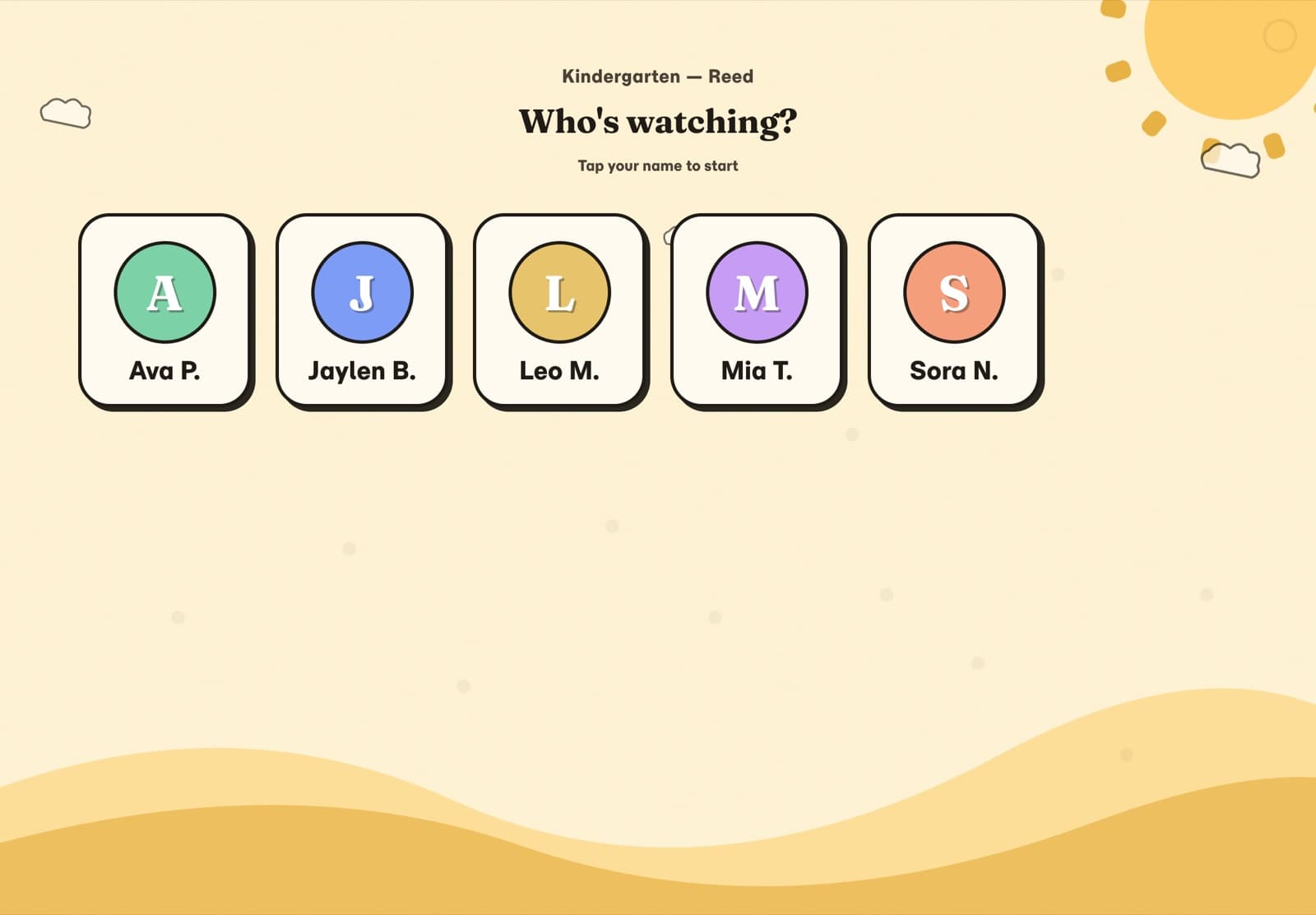
Each child taps their own tile.
First name and last initial on a colour tile. No photos and no passwords.
06 The child
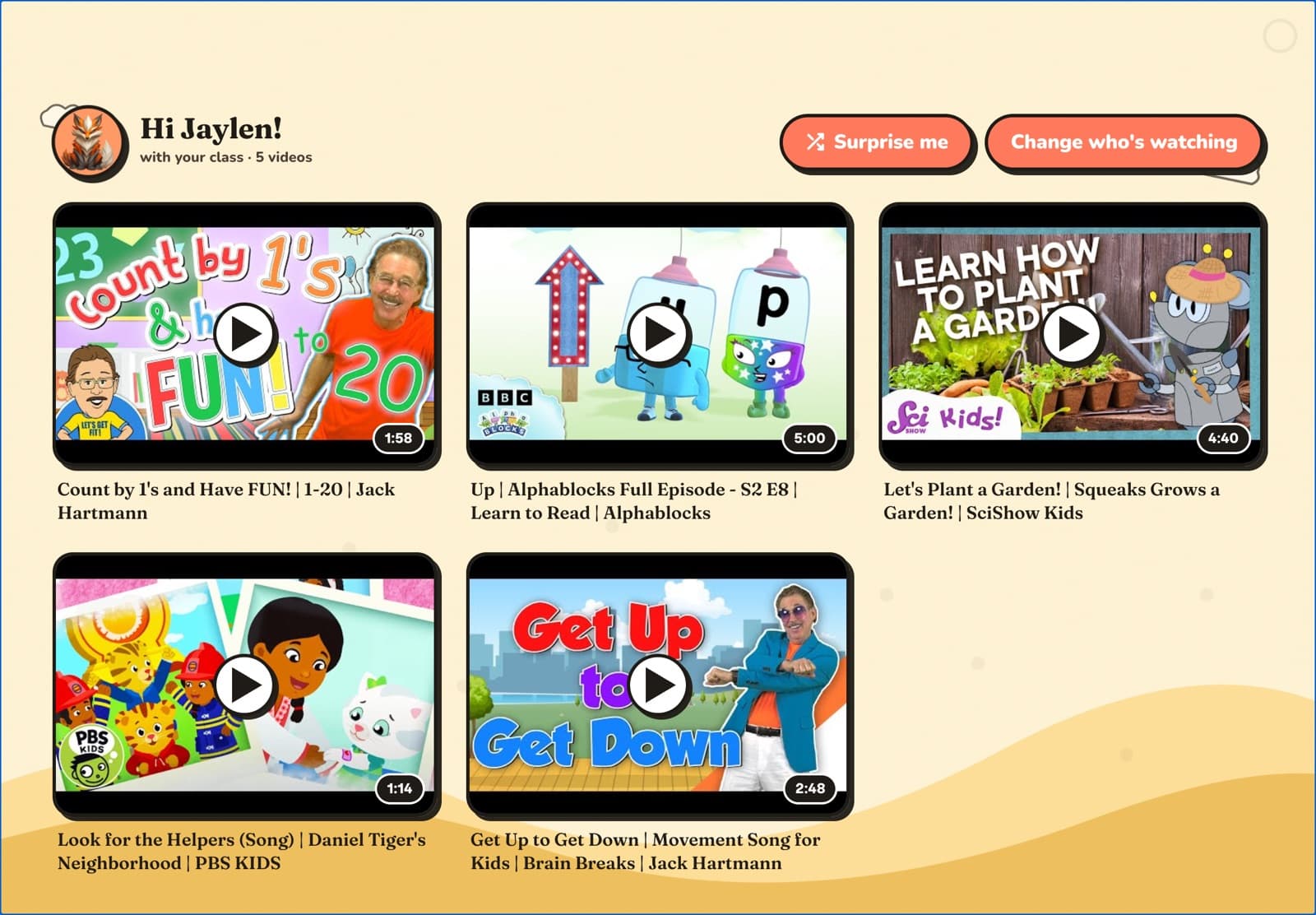
The child sees only what the teacher chose.
Jaylen sees the five videos Ms. Reed chose. No feed, nothing suggested. Surprise me picks from the same five.
07 The player
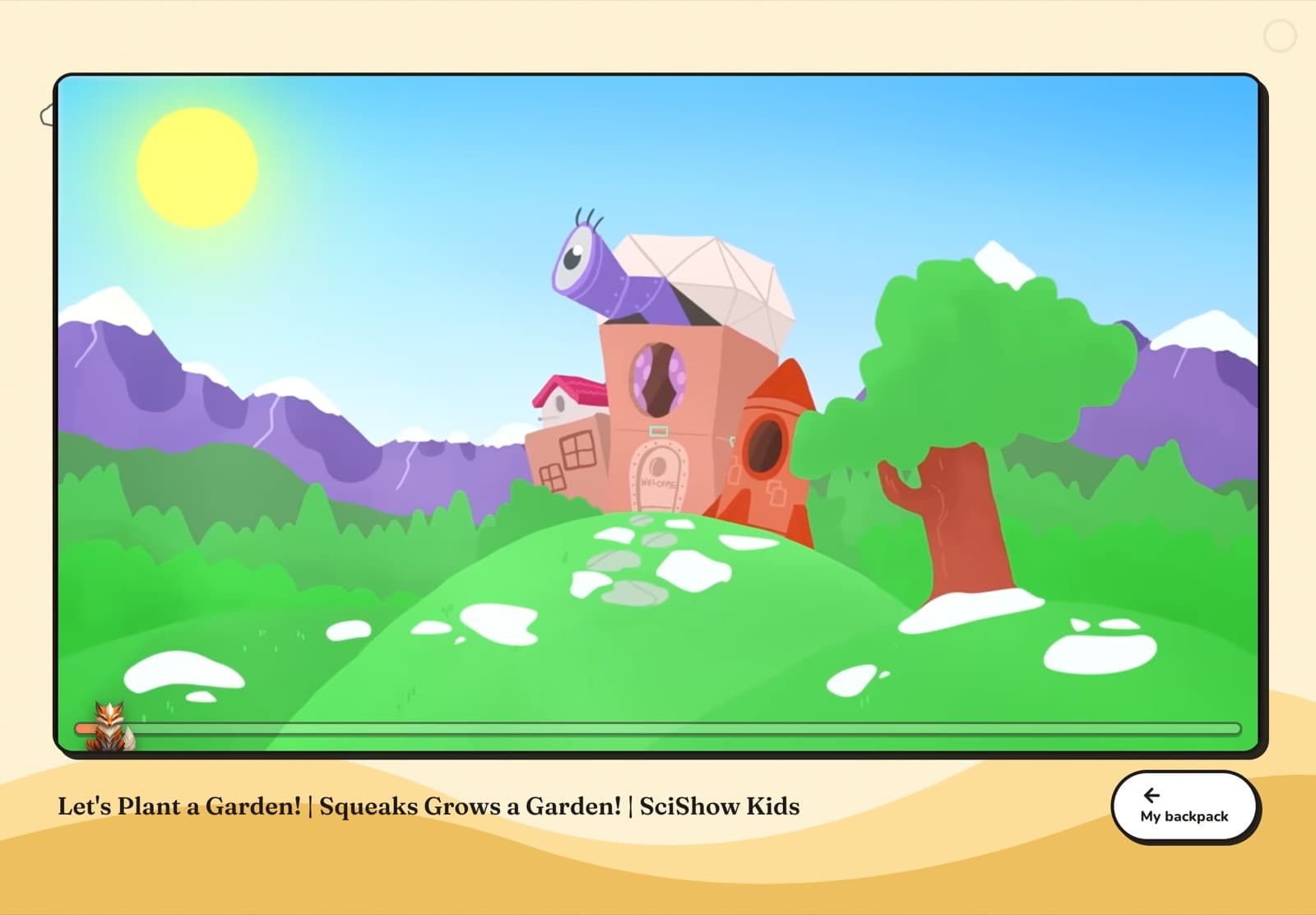
Backpack never starts another video on its own.
Backpack's own kid player. Backpack never starts another video on its own. The only exit is My backpack.
08 The family
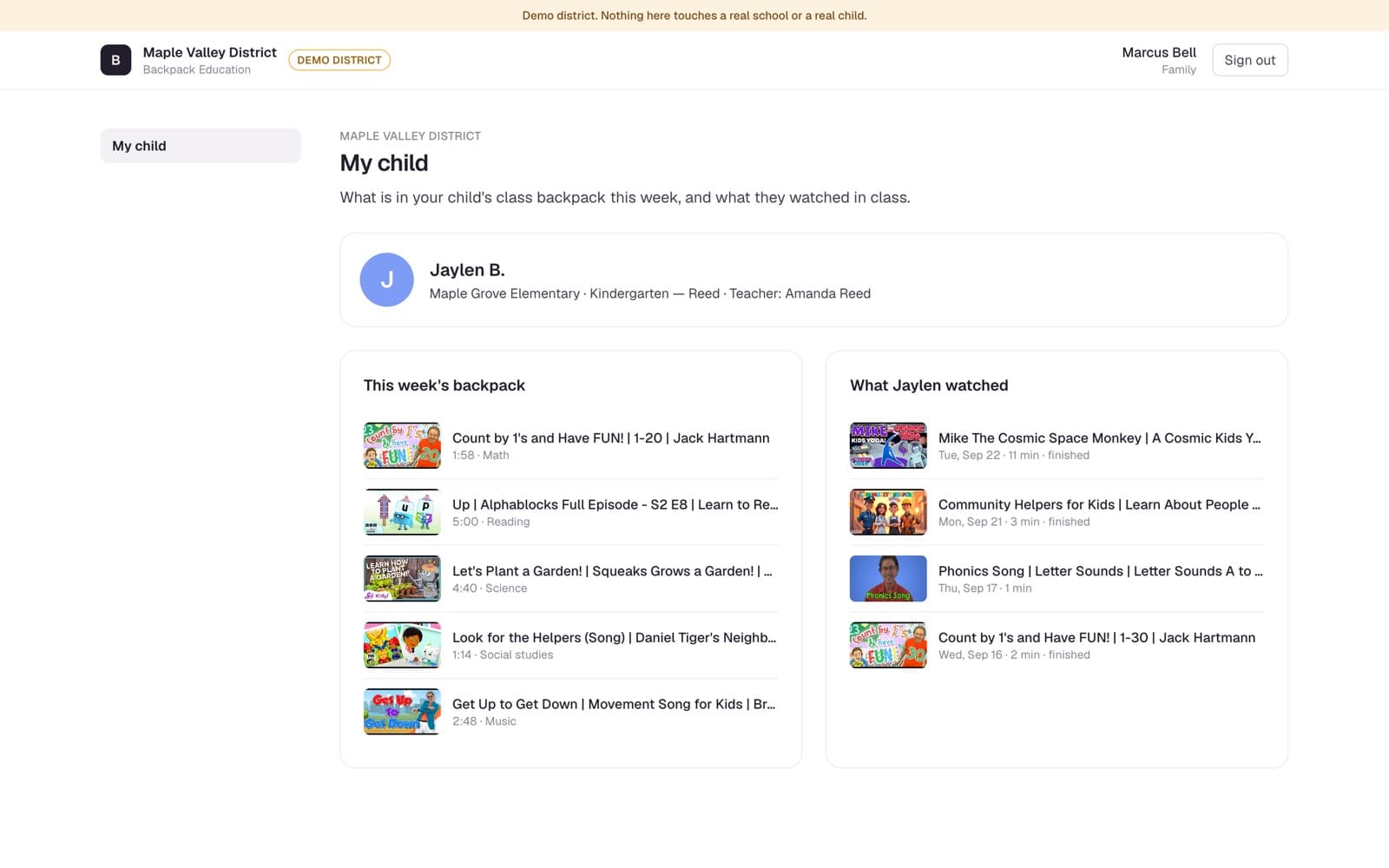
The parent sees it too.
This week's backpack, and what Jaylen watched: day, minutes, finished or not. Shown to his teacher and family. No principal or district screen shows it.
States and large districts are writing classroom screen-time rules. See where yours stands.
Try every role yourself in a demo district.
The demo district lets you sign in as a superintendent, principal, teacher, classroom tablet or parent. Nothing in it touches a real school or a real child.