For K-12 teachers

Show your class the video, without everything around it.

Your class sees only the videos you chose from your district's approved list, in the order you set. No suggestions, no comments and nothing playing next.

A sample class with fixed sample data. No form, no sign-in, nothing saved.

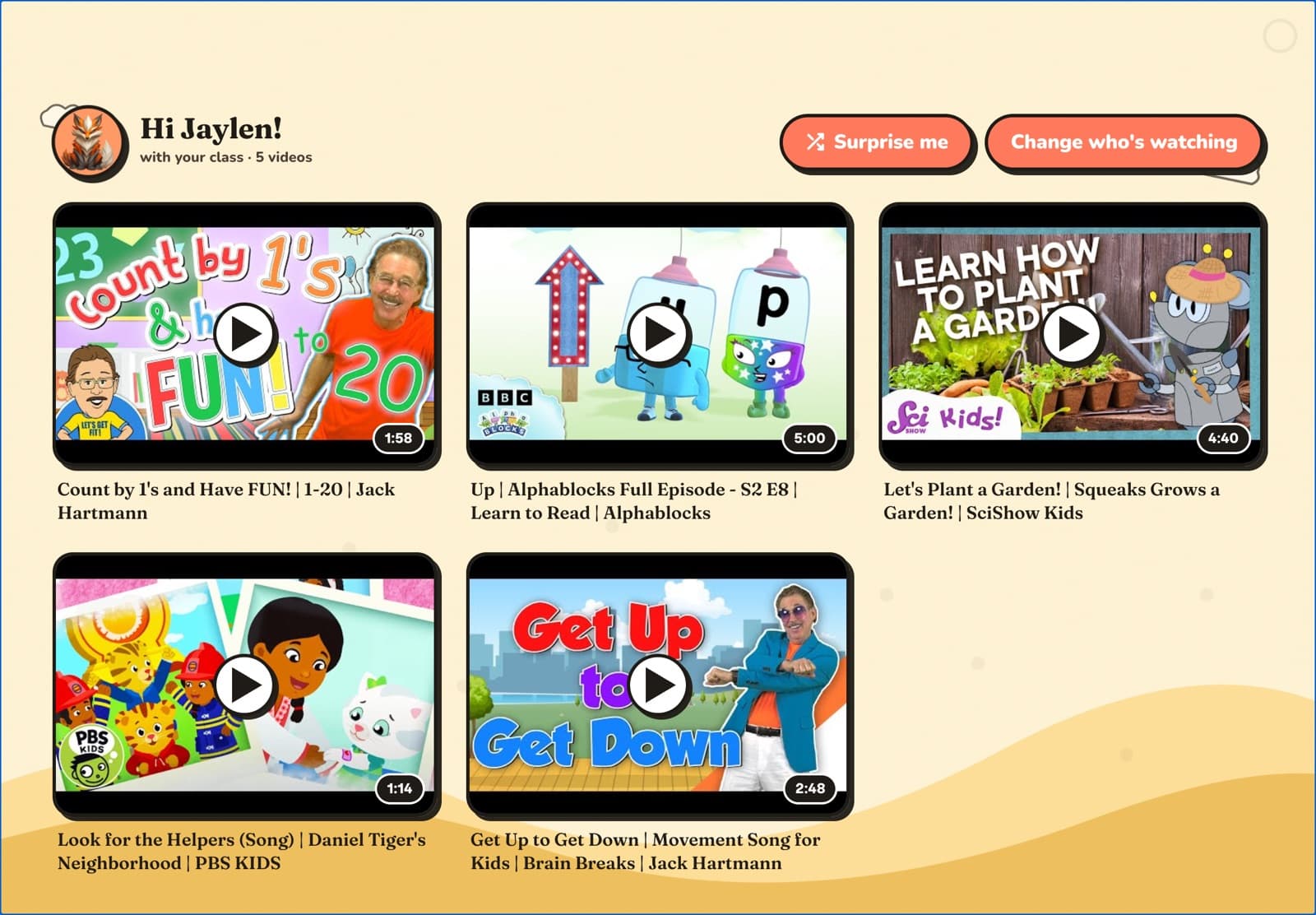
The classroom tablet as a child sees it: Hi Jaylen! with your class, 5 videos, and the five large video cards the teacher packed. There is no search box and no suggested videos.
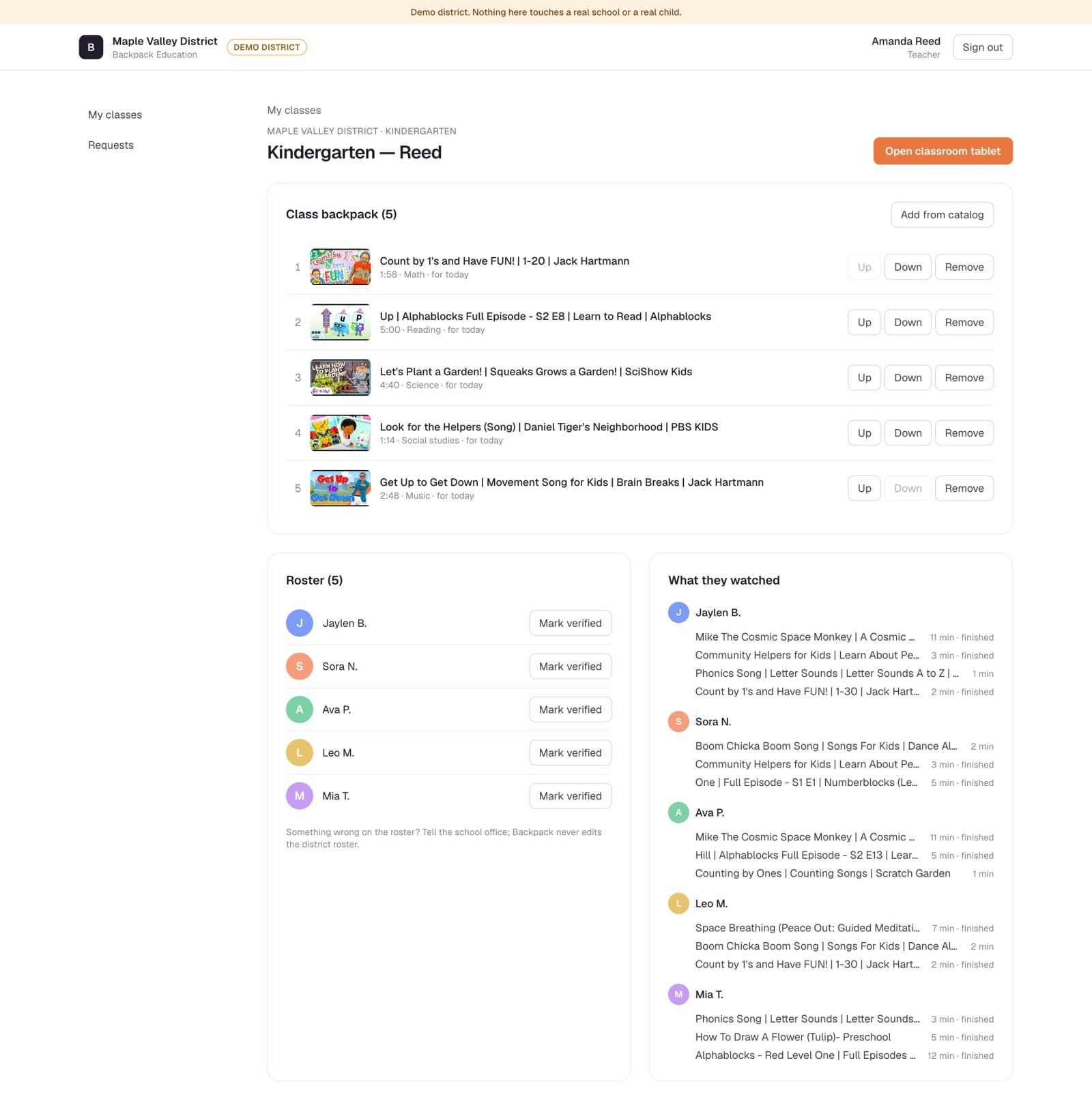
The teacher's class page: Kindergarten, Reed, an Open classroom tablet button, Class backpack (5) with an Add from catalog button, and five videos, each with Up, Down and Remove.

Real screens from our demo district. Names are fictional.

What a video page has, and your class does not get

  • Search
  • Up next
  • Suggestions
  • Comments
  • Accounts
  • The page around it

Only what you packed, in your order. Backpack never starts another video on its own.

Your week

Choose your videos in minutes. Open the class with one tap.

Before the week · about eight minutes

Choose the week's videos.

Open your class page, tap Add from catalog, and choose from videos your district already approved. Put them in teaching order with Up and Down, and take out any you do not need with Remove. That is the whole job.

The class backpack: five numbered videos, each with Up, Down and Remove, under an Add from catalog button.

In class · one tap

Open the classroom tablet.

One button opens the tablet. It signs you out on that device and hands it to the class, showing only this backpack. Each child taps their name and your lesson is waiting.

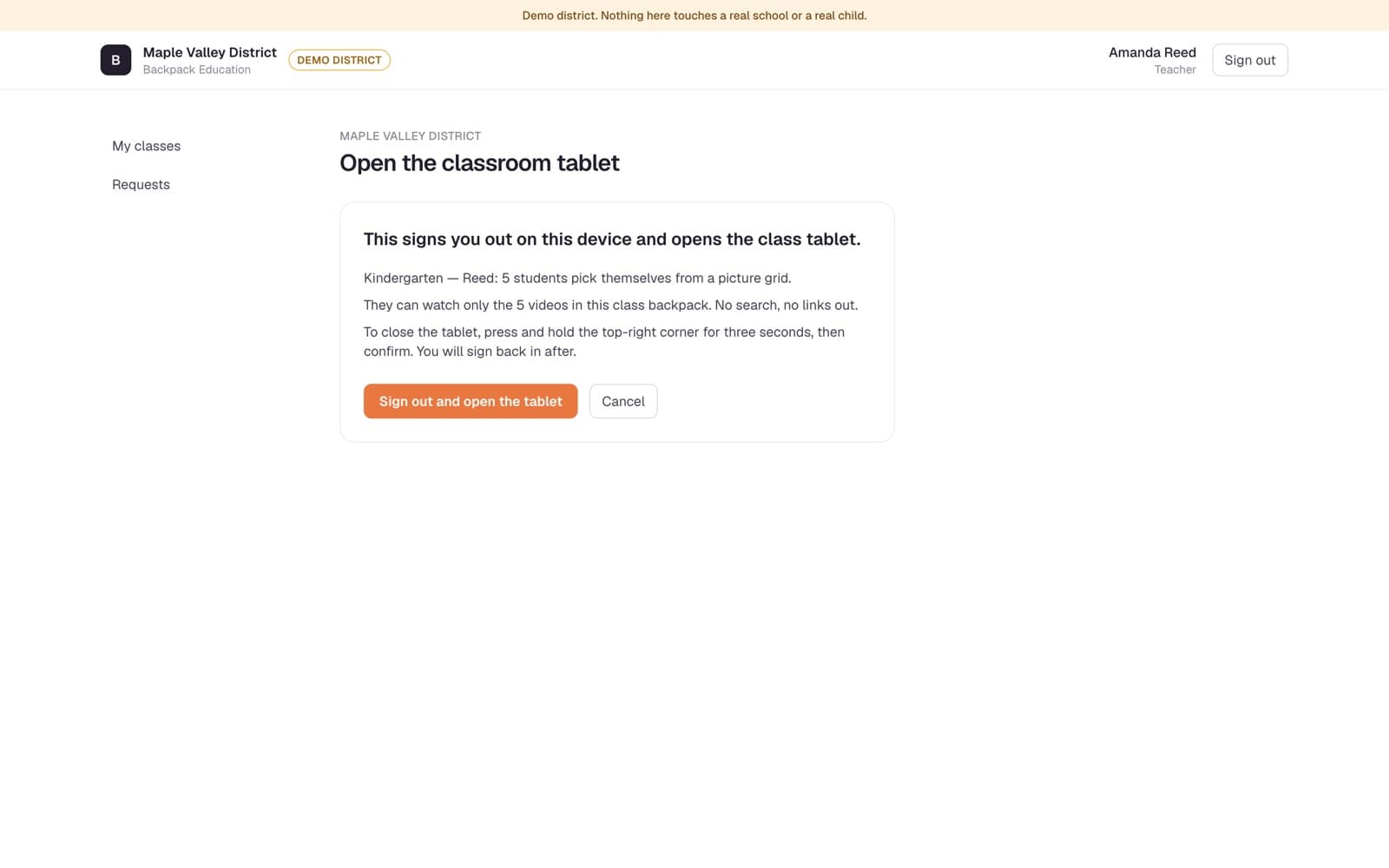
Confirm screen: This signs you out on this device and opens the class tablet, with Sign out and open the tablet.
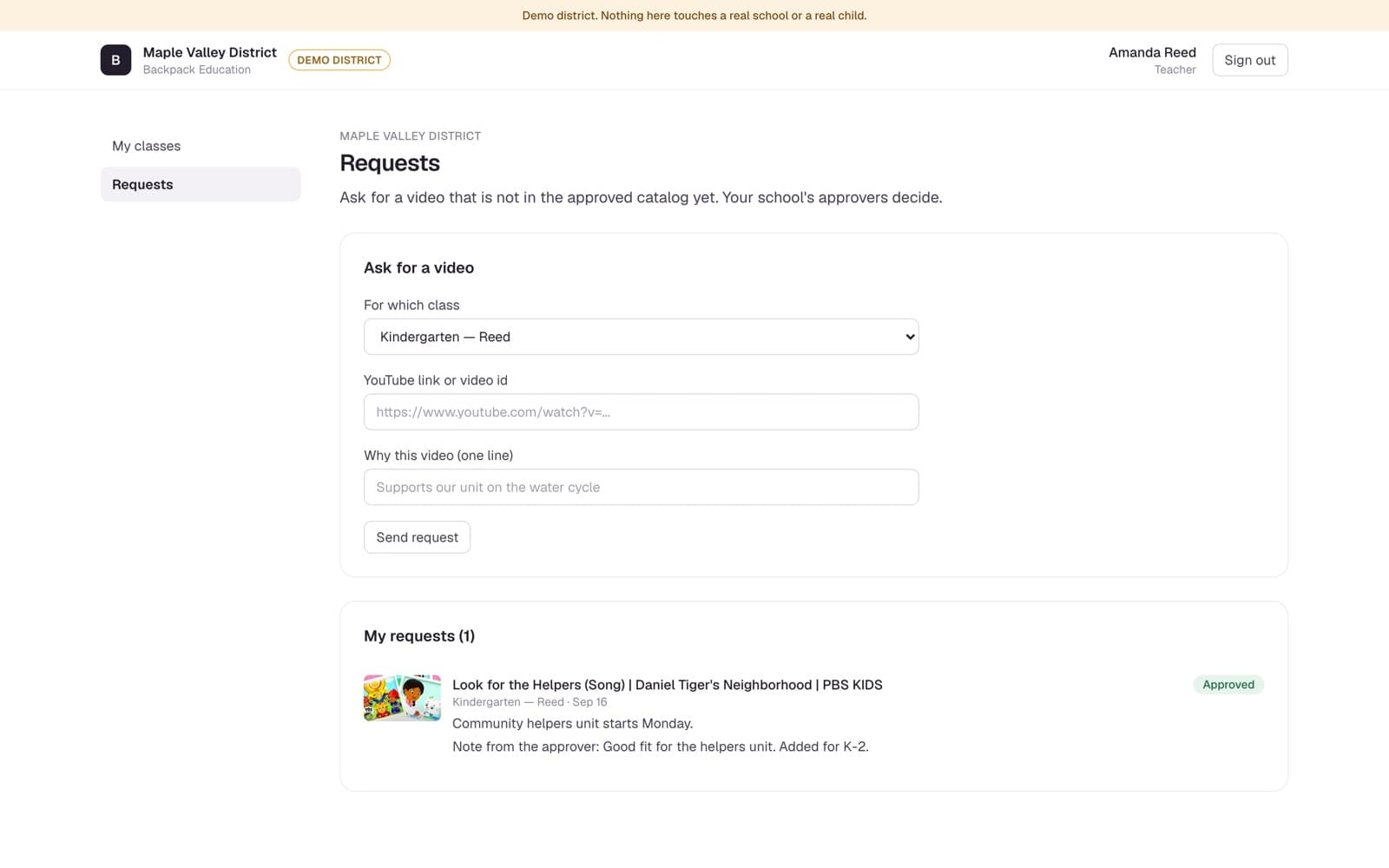
Teacher Requests page: Ask for a video, with the class, a video link, a one-line reason and Send request.

Not in the catalog yet?

Ask for a video that is not on the list.

Paste the video's link and add a note in your own words. It goes to the person your school chose for your grade band:

  • The principal
  • The technology director
  • The district curriculum team

They approve or decline with a note of their own. Once approved, the video is in the catalog for your grade band. How quickly depends on that person; your Requests page shows where each one stands.

Kindergarten to grade 12

One approved list. A screen that fits each age.

Every class watches only what its teacher chose from the district's approved list. How students get to those videos depends on their age. A K-8 school uses two of these: the classroom tablet in its K-5 rooms, and class codes in grades 6 to 8.

K-5 · elementary rooms

A shared classroom tablet

The teacher opens the class tablet with one tap. Each child taps a tile with their first name, last initial and colour, then sees only the videos their teacher picked. There is no search, and Backpack never starts another video on its own. The only button goes back to the class list.

Grades 6-8 · a K-8 school or a middle school

A class code and their own list

The teacher opens a class session and shows a six-letter code, full screen on the projector if they like. Students go to education.backpack.kids/join, type the code and pick their name. They see the class videos with a due date, a one-line note from the teacher and, where the teacher chose one, the part of the video to watch.

Grades 9-12 · high school

The same join, a layout for older students

High school students join the same way and see every class they are in, in a layout the school chooses: a syllabus, a week-by-week timeline, a notebook or a dark screen built for video. Teachers can add optional review videos on a shelf, apart from assigned work.

  • Signing inNo student has an email, a password or a photo in Backpack, at any grade. In grades 6 to 12 the class code works for 90 minutes and the session ends at the end of the school day.
  • Display optionsText size, reduced motion, high contrast, a dyslexia-friendly font, large captions and a focus mode that shows one video at a time. A teacher or school leader can set them for one student. Captions are on by default.
  • LayoutsThe district and each school choose a layout for grades 6-8 and for 9-12. A school can let its own students change theirs.
  • What counts as watchedA student has watched a video when they have seen at least 90 percent of the assigned part. The teacher sees who has.

Tablets, carts and the projector

How it works with tablets, carts and the projector.

Backpack runs in a web browser, so nothing is installed. Here is exactly how it handles the devices in your room.

  • A cart of tabletsOpen the classroom tablet on each device. Each one is its own session and shows the same class backpack, so a whole cart can run at once. Today you open each device yourself, and each one signs you out on that device; there is no single code that opens a whole cart.
  • One video on the projectorThere is no separate projector mode. The classroom tablet is a web page, so it also opens on the computer connected to your projector: open it there, tap a name, and play the video for the room. Whoever's name is tapped is recorded as having watched it.
  • A school dayA tablet you open stays open for up to 12 hours, then it stops working until you open it again.
  • Closing itPress and hold the top-right corner for three seconds, then confirm. It is nearly invisible, so it does not invite taps.

Safety, in plain words

What a child can and cannot do.

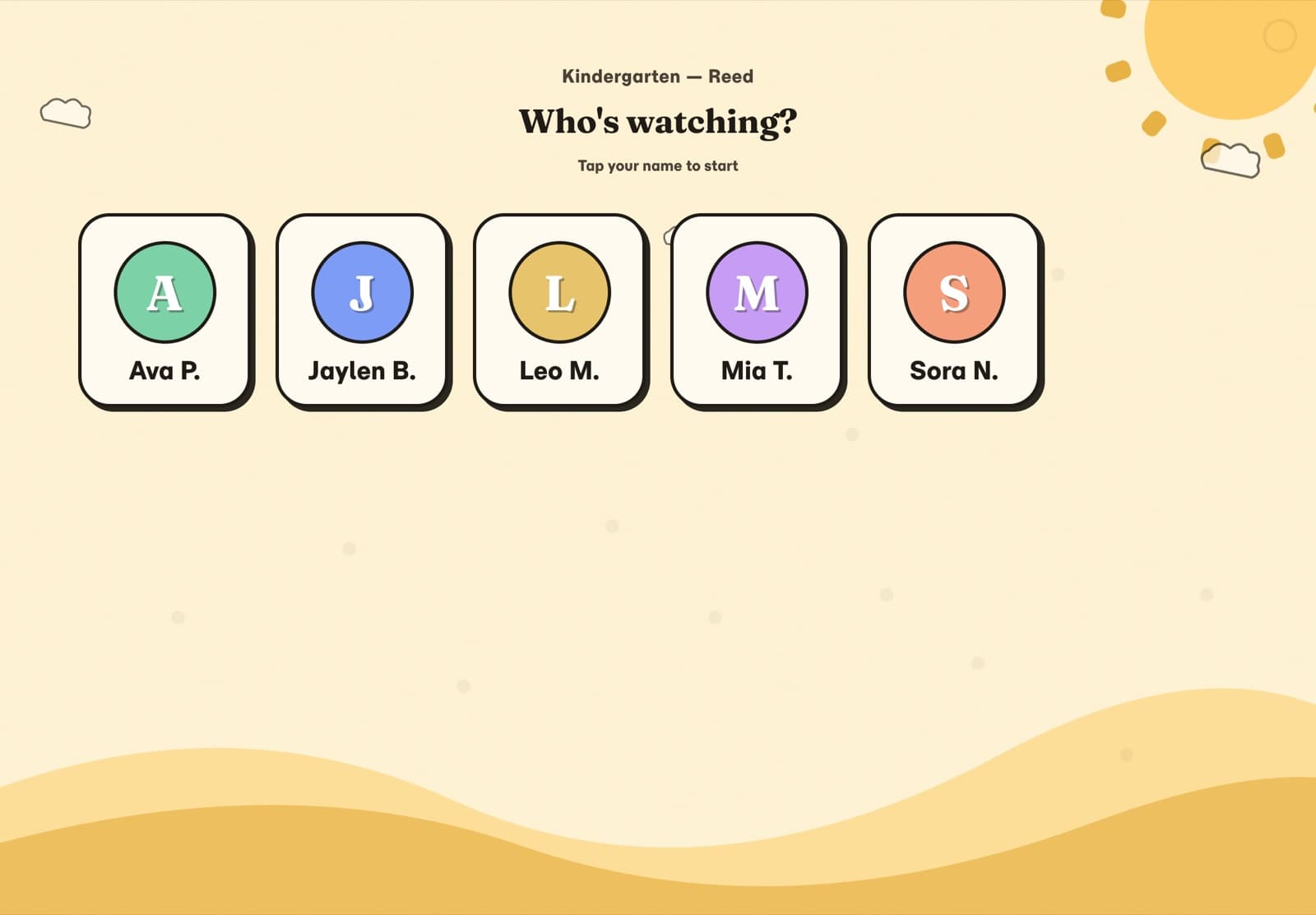
Who's watching? for Kindergarten, Reed: five tiles, each a coloured circle with a letter and a first name with last initial. Below: Tap your name to start.

Real screen, demo district. Names are fictional.

  • Signing inA five-year-old signs in by tapping a colour. First name and last initial only. No photos of children and no passwords.
  • WatchingNothing plays next on its own. Backpack never starts another video on its own. The only way out of the player is My backpack, back to the videos you packed.
  • No search, no feedNo search, no suggested videos, no comments to read or write.
  • AdsBackpack shows no ads and tracks nothing for advertising. Videos play in the video host's own embedded player, which may show a short ad before some videos. Backpack does not choose those ads.
  • Getting outYou close the tablet with a three-second press and hold on the top-right corner, then confirm. An Exit kid mode button appears only in the demo district; real tablets do not have it.
  • What is recordedYou see what each child watched: which video, for how long, and whether it finished. Only you and that child's family see it. No principal or district screen shows it.

Who approved it

Everything you pack was already approved.

  1. You

    Pack a class backpack from the catalog.

  2. Your school

    Approves new videos, grade band by grade band.

  3. Your district

    Keeps the catalog. If it removes a video, it leaves every backpack at once.

You don't lose anything

  • A shared catalogOne list for the whole district. Every video approved for your grade band is there, including the ones other teachers asked for.
  • Your backpack stays packedIt stays as you left it. If the district takes a video out, it leaves backpacks at once; if the district approves it again, it comes back to yours.
  • Reuse across classesCopy a backpack into another class you teach. Videos approved for that grade come across.

See how it works, classroom to district

Families

Families can see the same videos at home.

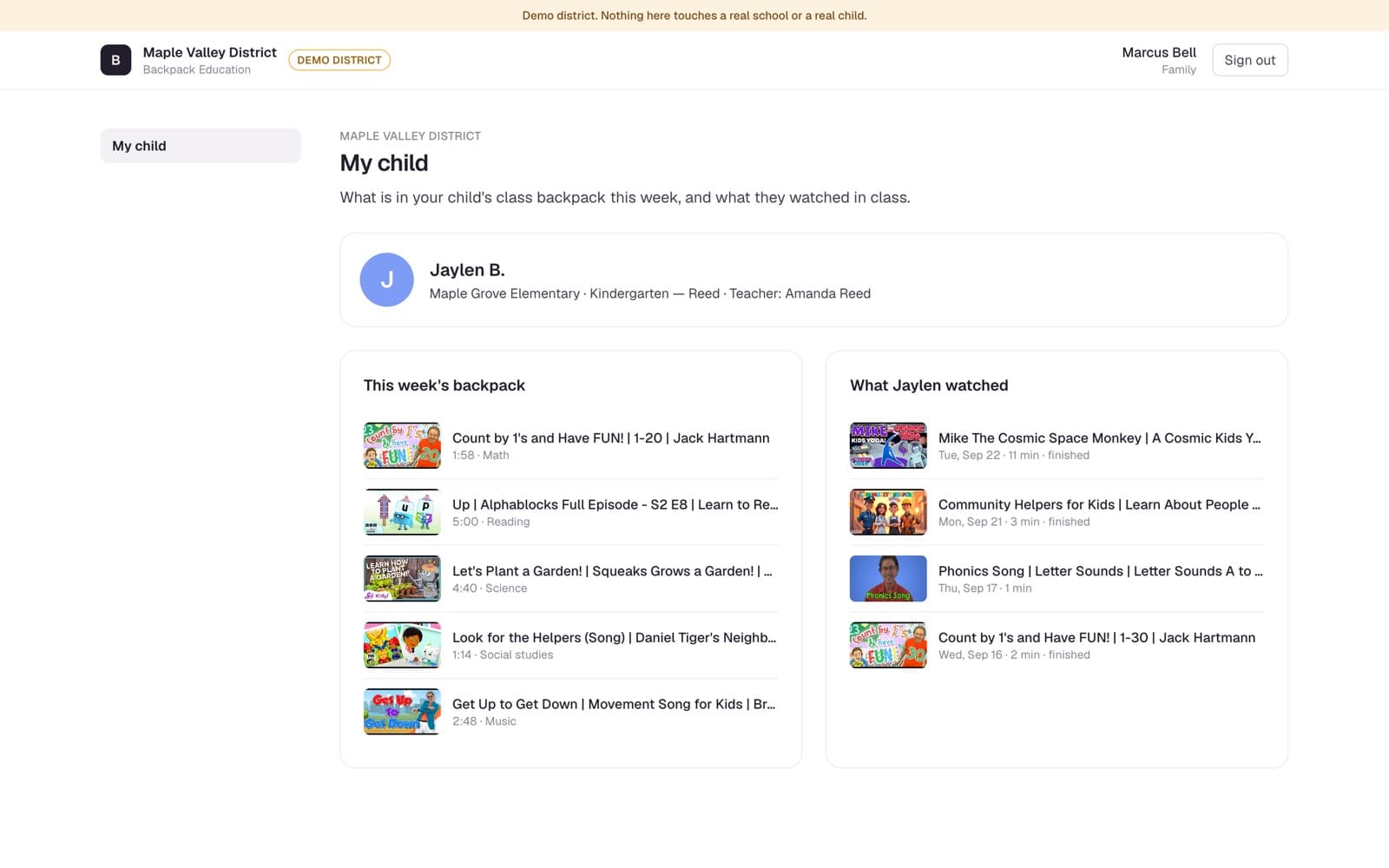
A family sees this week's class backpack and what their own child watched, so the conversation at pickup starts from your lesson. Your school decides whether a teacher, the office or nobody confirms each new family. If it is you, you check that the name matches.

The family view for one child: the class backpack for the week and what the child watched.

Your principal decides

Send this to your principal.

A one-page summary you can forward or print. It says what Backpack is, what you would do, what your principal would do, and what it costs.

The email opens in your own mail program. Nothing is sent from this site.

Backpack Education · one-page summary

Classroom video, and nothing else

What it is
Backpack Education shows each class only the videos its teacher chose from the district's approved list: on a shared classroom tablet in K-5, and through a class code in grades 6 to 12. No search, no suggestions, no comments, nothing playing next, no photos of children.
What a teacher does
About eight minutes a week to choose videos from the district's approved list, and one tap to open the tablet for the class. A teacher can ask for a video that is not on the list; the request goes to the person your school chose.
What you do
You choose, for each grade band, who approves new videos: the principal, the technology director or the district curriculum team. You confirm how children sign in (a picture grid of names and colours). You can see classes, approvals and the school's audit log of who changed what.
What children and families see
A child taps a first name and last initial on a colour tile. Families see this week's videos and what their own child watched. Only the teacher and the family see how long a child watched; no principal or district screen shows it.
Ads and data
Backpack shows no ads and tracks nothing for advertising. Videos play in the video host's own embedded player, which may show a short ad before some videos. Backpack does not choose those ads. We do not sell student data, and we sign your state's student data privacy agreement before any real student data is held.
Cost
A free one-school pilot. No purchase order to start. Pricing is set per district in the order form.

Try a sample class: education.backpack.kids/teachers/sample · Pricing and pilot: education.backpack.kids/pricing-and-pilot

Questions

Questions teachers ask

What grades is Backpack for?

Kindergarten to grade 12. K-5 classes watch on a shared classroom tablet the teacher opens. Grades 6 to 12 join with a class code the teacher shows, then pick their name. A K-8 school uses both, and a high school uses class codes.

Can a school customize who approves videos in the catalog?

Yes, for new videos. The district keeps the approved catalog, and teachers can use any video in it for their grade band without asking. When a teacher asks for a video that is not in the catalog, the principal decides who approves it, separately for K-2, 3-5 and specials: the principal, the technology director or the district curriculum team. The last two send the request to the district. Until the principal chooses, and for grades 6 to 12, requests go to the principal, who can approve, decline or send them to the district.

Does a teacher need approval for every video?

No. A teacher picks from videos the district already approved. Only a video that is not on the list needs a request, and the teacher's Requests page shows where each one stands.

How much time does it take a teacher?

About eight minutes a week to choose and order the week's videos, and one tap to open the classroom tablet or start a class session.

What devices does it need?

A web browser. Nothing is installed. In K-5 the teacher opens each tablet, it stays open for up to 12 hours, and a whole cart can run at once. The same page opens on the computer connected to the projector. Students in grades 6 to 12 can join from any school device with a browser.

How do students sign in?

K-5 children tap their own tile on the classroom tablet. Students in grades 6 to 12 type the class code and pick their name. No student has an email address, a password or a photo in Backpack.

Are there ads?

Backpack shows no ads and tracks nothing for advertising. Videos play in the video host's own embedded player, which may show a short ad before some videos. Backpack does not choose those ads.

Can I try it as a teacher before my school decides?

Yes. Start a free 14-day trial at education.backpack.kids/try with your school email address. You get one class of your own with ten sample students and a starter set of approved videos for your grade band. A teacher cannot buy Backpack; a school or district does. If your district signs up, what happens to your trial depends on its contract: it may be converted or phased out, and videos you collected can be moved into the district catalog. Nothing moves automatically.

Try it with a sample class, or start a 14-day trial.

Open a sample class as Ms. Reed: reorder the backpack, then open the tablet and watch it the way a child does. Fixed sample data, nothing saved.

Try Backpack in your classroom